Introduction
KSeF (Krajowy System e-Faktur) 2.0 is Poland’s mandatory national e-invoicing system operated by the Ministry of Finance. The system uses the FA(3) XML schema format for structured invoice data and provides real-time clearance for all B2B invoices. Invoices are encoded in FA(3), a strict XML format that enforces standardized fields for domestic and cross-border transactions. The KSeF system validates all submitted invoices in real-time and assigns a unique KSeF ID upon successful clearance. This guide covers two key processes:- Invoice issuance: Creating and sending FA(3) invoices through KSeF
- Invoice import: Importing received invoices from KSeF
- Send only: You issue invoices through KSeF on behalf of your suppliers. This is the simplest setup and does not require the Cron app or import/sync workflows.
- Send & receive: In addition to sending, you also want to automatically import invoices received by your suppliers from KSeF. This requires the Cron app to periodically check for new invoices.
Prerequisites
To issue invoices through KSeF, you will need:- A registered party (supplier): follow the KSeF supplier registration guide to connect the Poland app and register the party with KSeF before issuing.
- Customer details, including their Polish Tax ID (NIP) for domestic B2B invoices.
- Line items with quantities, prices, and applicable VAT rates.
Setup
All of the following steps must be carried out from the Invopop Console.Configure the invoice sending workflow
KSeF send invoice workflow
- Workflow
- Code
Connect the Cron app
- Navigate to Configuration → Apps
- Find Cron in the app discovery list
- Click Connect to activate
Configure the invoice import workflow
KSeF import invoice workflow
- Workflow
- Code
Configure the invoice sync workflow
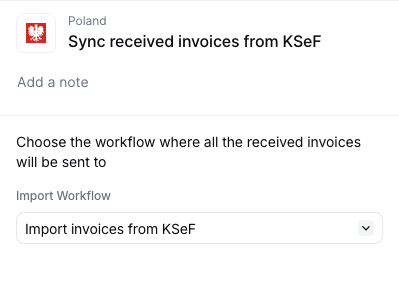
KSeF sync received invoices workflow
- Workflow
- Code
Running
In this section, we’ll provide details on how to issue invoices on behalf of a registered party and how to import received invoices.Send an invoice
Once a party is registered, you can issue invoices on their behalf. The following examples show partial GOBL documents you can copy and paste directly into the Invopop Console or store via the API as silo entries.B2B Standard Invoice
B2B Standard Invoice
- the minimal version in the first tab contains only the essential fields required to create the invoice,
- the
pl-ksef-v1addon ensures the document will be validated using the KSeF rules built into the GOBL library, - there are no totals or calculations in the minimal version; all these will be calculated automatically when running
gobl build, - the built version in the second tab shows the normalized document with calculated totals, line item sums, tax breakdowns, and automatically generated fields like
i(line index),sum, andtotal, and, - make sure to process it with the “KSeF issue invoice” workflow created during setup.
B2B Reverse Charge Invoice
B2B Reverse Charge Invoice
- the customer has a valid EU VAT ID, indicating the transaction is subject to reverse charge mechanism,
- the minimal version contains only essential fields; totals and tax calculations are omitted,
- when running
gobl build, the system automatically calculates totals, applies reverse charge rules, and normalizes the document, - the built version shows all calculated fields including the reverse charge indicator, tax breakdowns, and final totals, and,
- the invoice is validated using the KSeF rules to ensure compliance with Polish e-invoicing requirements.
B2B Credit Note
B2B Credit Note
- the
typefield is set tocredit-noteto indicate this is a corrective document, - the
precedingfield references the original invoice being corrected, - the minimal version contains only the essential fields; calculations are handled by GOBL,
- when running
gobl build, the system automatically calculates negative totals, tax refunds, and validates the credit note structure, - the built version shows all calculated fields including negative amounts for the refund, and,
- the document is validated using the KSeF rules to ensure compliance with Polish credit note requirements.
B2B Prepayment Invoice (Faktura Zaliczkowa)
B2B Prepayment Invoice (Faktura Zaliczkowa)
- the
$tagsfield includespartial, which tells the FA_VAT addon to classify this as aZAL(Faktura Zaliczkowa) document type, - the
payment.advancesarray records the advance payment details, including the mandatorydatefield and apercentof the total, - GOBL automatically calculates the advance amount from the percentage and deducts it from the payable total to produce the
dueamount, - the built version shows
"pl-favat-invoice-type": "ZAL"automatically set in the tax extensions, and, - after sending this invoice through KSeF, reference the assigned KSeF number in the subsequent settlement invoice.
B2B Settlement Invoice (Faktura Rozliczeniowa)
B2B Settlement Invoice (Faktura Rozliczeniowa)
- the
$tagsfield includessettlement, which tells the FA_VAT addon to classify this as aROZ(Faktura Rozliczeniowa) document type, - the
precedingfield references the original prepayment invoice, including its KSeF number stamp, - the
payment.advancesarray records the previously paid advance amount, which GOBL deducts from the total to calculate the remainingdue, - the line items represent the full value of the delivered goods or services, and,
- the built version shows
"pl-favat-invoice-type": "ROZ"automatically set in the tax extensions.
B2C Invoice (voluntary)
B2C Invoice (voluntary)
Self-billed Invoice
Self-billed Invoice
- Click Build to validate
- Click Save to store in the silo
- Click Select workflow and choose the KSeF Send Invoice workflow
- Click Run workflow
Import received invoices
- Cron scheduling: The Cron app creates a job for the sync workflow at each configured interval, passing the time window (
fromandupto) to process - Sync workflow: The sync workflow queries KSeF for all invoices received within the time window
- Import jobs: For each invoice found, a job is created using your import workflow
- Import workflow: Each job downloads the FA(3) XML from KSeF, converts it to GOBL format, and stores it in your Invopop silo
- Organization: Imported invoices are automatically placed in the configured folder (typically “Invoices · Expenses”) with a
Registeredstate
Manual import
If you need to import invoices outside of the automatic cron schedule, you can manually trigger imports from the Console or via the API. Import a single invoice To import a specific invoice from KSeF, you need:- KSeF Number: The unique invoice identifier (e.g.,
1234567890-20260120-ABCD1234-EF) - Supplier NIP: The Polish Tax ID of the invoice issuer
- Console
- API
- Navigate to Workflows and find your KSeF Import Invoice workflow
- Click Run from the workflow editor or the
...menu in the workflow list (see Running from the Console) - Leave the document field empty — the import workflow will create a new silo entry automatically
- Fill in the Arguments:
- Click Run workflow
- The party silo entry for the supplier whose invoices you want to sync
- The date range (
fromandupto) to process
- Console
- API
- Navigate to Workflows and find your KSeF Sync Received Invoices workflow
- Click Run from the workflow editor or the
...menu in the workflow list - In the Select a document field, search for and select the party (supplier) entry
- Fill in the Arguments:
- Click Run workflow
Error handling and notifications
We strongly recommend adding notification steps to your workflows to alert you of import failures:- In the import workflow: Add email or Slack notifications to the error handling section
- In the sync workflow: Add notifications for when the sync process encounters issues
GOBL addon reference
Detailed information about the FA(3)-specific extensions and validations can be found in: You can also use the GOBL Builder to create custom invoices with the Polish regime and FA(3) addon.FAQ
What happens when I send an invoice to a foreign recipient?
What happens when I send an invoice to a foreign recipient?
- The invoice is created in GOBL with the foreign recipient’s details
- It’s converted to FA(3) XML format and submitted to KSeF
- KSeF validates and clears the invoice, assigning a unique KSeF ID
- The invoice is registered in the KSeF system
What's the difference between test, demo, and production environments?
What's the difference between test, demo, and production environments?
What KSeF applications and portals are available?
What KSeF applications and portals are available?
- KSeF Taxpayer Application – the main portal with all functionalities
- KSeF Mobile Application – a mobile app for on-the-go access
- e-mikrofirma – a simplified portal aimed at micro-entrepreneurs
- KSeF Demo Portal – demo environment for testing
How do I configure my workspace for Polish invoicing?
How do I configure my workspace for Polish invoicing?
I get a "failed to create session (Status 403 Forbidden)" error when sending an invoice to KSeF. What does it mean?
I get a "failed to create session (Status 403 Forbidden)" error when sending an invoice to KSeF. What does it mean?
- The company account directly logged into KSeF, or
- An entity that has both InvoiceRead and InvoiceWrite permissions (managed within KSeF)
- Grant permissions in KSeF: The company admin (or whoever has direct access to the KSeF company account) grants
InvoiceReadandInvoiceWritepermissions to the user who uploaded the certificate to Invopop. This can be done from the KSeF application portal and requires no further action in Invopop (no need to unregister/register). - Re-register with a new certificate: Unregister the supplier in Invopop and register it again using a certificate generated from the main KSeF company account (or another account with the required permissions).
Where do I find Poland-specific GOBL documentation?
Where do I find Poland-specific GOBL documentation?
pl-favat-v3 addon documents the FA(3) schema fields required for KSeF.How do I set the unit of measure (jednostka miary) on a line item, like "szt." or "usł."?
How do I set the unit of measure (jednostka miary) on a line item, like "szt." or "usł."?
P_8A field on each FaWiersz. Invopop supports two ways to populate it:- Canonical unit code on
Item.Unit— preferred when the unit exists in the GOBL unit catalogue or as a UN/ECE Recommendation 20 code. For example,Item.Unit: "H87"(piece) orItem.Unit: "KGM"(kilogram). The gobl.ksef converter emits the UN/ECE code directly intoP_8A. - Free-form label on
Item.Meta["unit-label"]— use this for Polish abbreviations that do not match a canonical code, such as"szt."(sztuka — piece),"usł."(usługa — service),"kpl."(komplet — set) or"opak."(opakowanie — package). The value is passed through toP_8Aunchanged, so the supplier’s exact wording is preserved on the KSeF XML.
P_8A value that is not a recognised GOBL or UN/ECE code, gobl.ksef preserves the original string under Item.Meta["unit-label"] so round-trips do not lose the supplier’s wording. Item.Unit is only populated when the value validates as a canonical code.🇵🇱 Invopop resources for Poland
🇵🇱 Invopop resources for Poland