

Introduction
Invopop’s Smart Receipts provider allows you to generate and issue electronic tickets (documento commerciale/scontrino elettronico) in Italy. The documento commerciale is a digital fiscal document that records sales transactions and transmits them to the Agenzia delle Entrate (AdE). This digital receipt replaces traditional paper receipts while maintaining full fiscal compliance and serves as official proof of purchase for your customers. Italian law requires businesses to transmit sales data digitally through either a certified Registratore Telematico (RT) or the AdE’s online portal. Smart Receipts streamlines this process by providing a secure interface to relay your sales data to the AdE through a local provider. Important distinctions for the Documento Commerciale:- It is not an invoice (fattura) - invoices require detailed buyer information and follow different tax rules.
- It does not replace transport documents (documento di trasporto).
- It is not a simple internal receipt - it serves an official fiscal function requiring AdE transmission.
- It must include VAT at the time of sale - deferred VAT payment is not permitted.
Prerequisites
Before you begin, ensure you have:- A registered supplier: follow the Smart Receipts supplier registration guide to connect the Italian Smart Receipts app and register the supplier’s AdE credentials before issuing.
- Invoice line items that include:
- quantity,
- name ,
- price (including VAT),
- VAT rate,
- item type (specified in extension).
Setup
There are two key processes to prepare:- Prepare an invoicing workflow.
- Prepare a voiding workflow.
These instructions work in both sandbox and live environments. The Italian Smart Receipts app must already be connected and the supplier registered — this is covered in the supplier registration guide.
1
Prepare Invoice Workflow
Smart Receipts issue receipt workflow
Add to my workspace →
- Workflow
- Code
2
Prepare Void Workflow
Smart Receipts void receipt workflow
Add to my workspace →
- Workflow
- Code
Running
In this section we’ll explain how to issue and void invoices on behalf of a registered supplier, with the corresponding workflows. As usual, the recommended approach for running jobs is to perform two steps; first upload the document to the silo, second create a job.Send an invoice
Use these GOBL document examples as templates in the Invopop Console or when creating silo entries via the API. For proper validation and normalization, set these properties in your GOBL Invoices:- Set
$regimetoIT - Include
it-ticket-v1in$addons
B2C Invoice
B2C Invoice
This example shows a simple B2C invoice from an Italian supplier (Documento Commerciale). Key points to note:
- The minimal version in the first tab contains only the essential fields required to create the invoice
- The
it-ticket-v1addon ensures validation using AdE CF v1 rules built into GOBL - Extensions (
ext) fields specify values that cannot be determined otherwise:- Items have an extension identifying them as goods or services
- VAT exemptions require an Italian exemption code
- The
prices_includefield indicates that item prices include VAT - When running
gobl build, the system automatically calculates totals, line item sums, IVA breakdowns, and normalizes the document according to Smart Receipts requirements - The built version in the second tab shows the normalized document with all calculated fields including line indices, sums, and total amounts
B2C Invoice Complete
B2C Invoice Complete
After the AdE (Agenzia delle Entrate) accepts the invoice, they add a reference to each line item. This reference, stored in the
it-ticket-line-ref extension, is essential for processing refunds.Notice:- This example shows a complete invoice with line references added by the AdE after acceptance
- The minimal version contains the basic invoice structure before AdE processing
- When running
gobl build, the system calculates all totals and normalizes the document - The built version shows the complete document with AdE-assigned line references, calculated totals, and all automatically generated fields
- These line references are required for creating corrective invoices and processing refunds
- The complete invoice represents the final state after successful submission to and acceptance by the AdE
Corrective Invoice
Corrective Invoice
When a customer requests a refund for specific items, you can process it by issuing a corrective invoice. Since this is still considered sending an invoice, you can use the same workflow as before.To create a corrective invoice, take the original GOBL Invoice and:
- Set the
typefield tocorrective - Add a reference to the original invoice using the
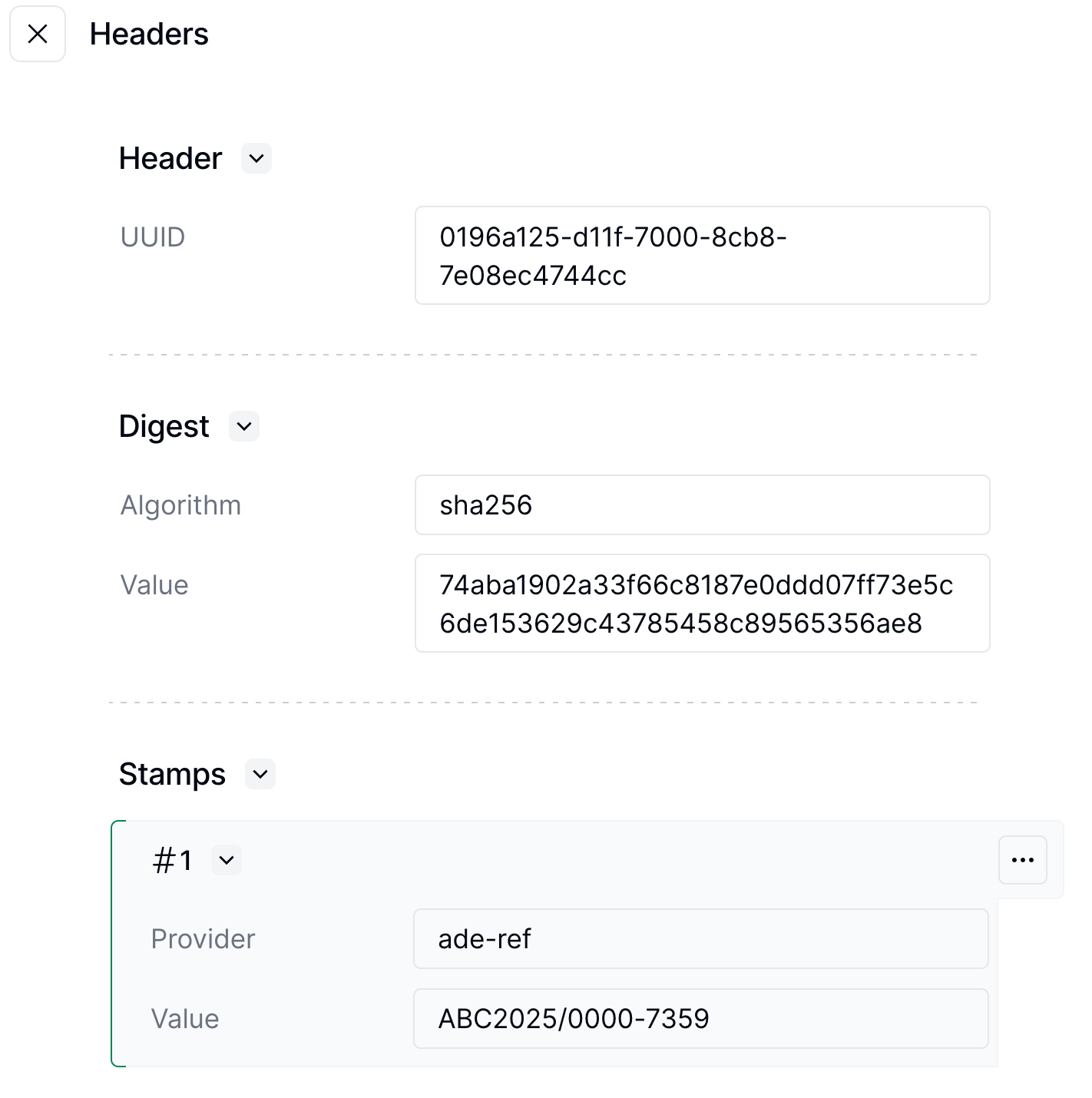
precedingobject - Include the original document number stamp from the first invoice
- Keep the lines and quantities you want to refund
- The minimal version in the first tab contains only essential correction details including references to the original invoice
- The corrective invoice preserves the
it-ticket-line-refextension from the original invoice for proper tracking - When running
gobl build, the system automatically calculates negative amounts for refunds, validates the corrective structure, and applies AdE rules - The built version in the second tab shows the normalized document with calculated negative totals, tax refunds, and all automatically generated fields
- The corrective invoice references the original invoice using the
precedingobject and maintains line item references for accurate tracking - This example shows a corrective invoice that refunds two units of “Cleaning Products” from the original invoice
Refund an invoice
Refund processing is handled through corrective invoices, which you can issue using the same workflow as regular invoices. See the “Corrective Invoice” accordion above for details and examples.Void an invoice
You can void an invoice if it was issued in error, such as when a receipt is accidentally sent twice. To void an invoice:- Locate the silo entry uuid of the invoice
- Run the “Void Italian Smart Receipts” workflow with this uuid
FAQ
How do I configure my workspace for Italian invoicing?
How do I configure my workspace for Italian invoicing?
Install the SDI Italy app for B2B/B2G/B2C structured invoicing, or the Smart Receipts app for B2C-only AdE CF receipts. Run invoices through the Generate FatturaPA + Send to SDI workflow.
Where do I find Italy-specific GOBL documentation?
Where do I find Italy-specific GOBL documentation?
See the Italy tax regime in GOBL for tax categories, codice fiscale rules, and SDI-specific extensions. The
it-sdi-v1 addon documents required FatturaPA fields.How do I correct mistakes in an issued AdE CF invoice?
How do I correct mistakes in an issued AdE CF invoice?
You cannot modify an AdE CF invoice after issuing it. Instead you must:
- Void the incorrect invoice using the “Void AdE CF Invoices” workflow
- Issue a new invoice with the correct information
Do I still need to add a series and code to the invoice?
Do I still need to add a series and code to the invoice?
We recommend adding a series and code to the invoice so that you can keep track internally even though the AdE will generate a document number.
Is AdE CF a substitute for SDI?
Is AdE CF a substitute for SDI?
AdE CF is not a substitute for SDI. SDI is the main channel for issuing electronic invoices in Italy; Invopop issues FatturaPA documents through it. AdE CF should only be used when customer information is not available, like in online B2C scenarios.
What GOBL fields are required for Smart Receipts?
What GOBL fields are required for Smart Receipts?
Use the standard GOBL invoice with the simplified tag. No customer tax ID is required. The
it-ticket-v1 addon handles the AdE CF-specific fields. Each receipt gets a unique Lottery Code if the lottery functionality is enabled.🇮🇹 Invopop resources for Italy
🇮🇹 Invopop resources for Italy



Participate in our community
Ask and answer questions about invoicing in Italy →